
How to Make an AI GIF: A Practical Prompt Guide
Plan a clear reaction, write a useful animation prompt, choose your format, and preview, download, or share your creation with GIFMeme.
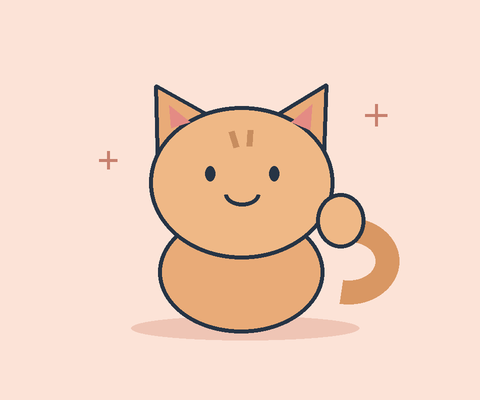
A useful AI GIF starts with a small, recognizable moment: a cat saying hello, a cake waiting for a wish, or a gentle shake of the head. The aim is an animation someone can understand in a conversation without a long explanation.
This guide walks through the GIFMeme AI GIF generator, from the first prompt to choosing how other people can see your creation. If you need something to send immediately, Explore is also a good place to look for an existing GIF.
Give the GIF one job
Before describing a character, finish this sentence: “I want to send this when…” You might be welcoming a friend, celebrating a small win, or politely declining an invitation. Choose one purpose rather than asking a single animation to tell a whole story.
Consider the recipient, too. A playful reaction for a close friend may feel too loud in a work conversation. Browsing happy GIFs or celebration GIFs can help you decide how much energy your idea needs.
Write a prompt with a clear action
Build your description around five parts: subject, movement, feeling, framing, and the loop. You do not need a long prompt; you need details that support the same idea.
“A funny cat” leaves the action open. A more useful starting point is:
A cheerful orange cat waving one paw, friendly smile, centered on a pale blue background, gentle repeated motion, seamless loop.
The subject is recognizable, the movement has one focus, and the background gives the gesture room. “Seamless loop” describes the result you want; you should still inspect the transition in the finished animation.
Try one of these examples, then adapt its mood to your conversation:
- A warm greeting: A small clay penguin lifting one flipper in a slow hello, curious expression, simple mint background, centered composition, seamless loop.
- A birthday wish: A tiny pink cake with softly flickering candles, cheerful mood, plain lavender background, steady camera, seamless loop.
- A gentle refusal: A friendly round robot slowly shaking its head, apologetic smile, warm neutral background, one clear gesture, seamless loop.
For the first attempt, keep extra characters, camera moves, and background action to a minimum. If wording is essential to your message, include it in the conversation as text rather than making the animation carry every detail.
Choose the settings that support the idea
Use the mode menu to choose Text to GIF or Image to GIF. Text mode starts from your description. In image mode, upload a reference image first, then describe the movement you want. The uploader shows the supported file types and limits.
Open Settings to choose a model, canvas format, and frame count. Square, landscape, and portrait formats change the composition. A centered character can be a useful square starting point; a wider scene may need landscape. Keep the important action away from the edges so it remains understandable in a small preview.
Choose a frame-count tier for the animation, and check the displayed credit requirement before submitting. The cost can change with your settings. Describe the style, feeling, and occasion in the prompt itself: these details help explain what you want, rather than selecting a separate style or mood control.
Generate, then watch the whole result
Open the generator, enter your prompt, and choose the settings. Sign in to create, and check the availability notice and displayed credit requirement before submitting. If generation is unavailable, the page says so; you can continue browsing the public collection.
An example shown before generation is inspiration. Original sample animations are labeled, and a sample preview is not your newly generated result.
Once your creation is ready, watch a complete cycle. Check the expression, the main gesture, the edges of the frame, and the point where the movement begins again. Then view it at a smaller size: can you still understand the reaction?
If the result feels crowded, simplify the next prompt. If the movement feels too energetic, ask for a smaller gesture. Change one idea at a time so you can judge what helped. When a task needs checking, open My creations before submitting another attempt.

Choose how to share it
New creations start private. You can download a ready GIF or open its detail page from My creations. For a link you want to send to someone, choose Create sharing link, then Copy link. Anyone holding that complete link can view the GIF.
Link sharing and public discovery are separate choices. Submit to Explore sends a creation for review; it appears publicly after approval. You can revoke a sharing link or make a public creation private, but that cannot recall files someone already downloaded.
For more ideas about matching a GIF to a conversation, read how to choose a reaction GIF. Or browse the tag directory to find a gesture, character, or feeling worth turning into your next prompt.